[ratingbox summary=no]
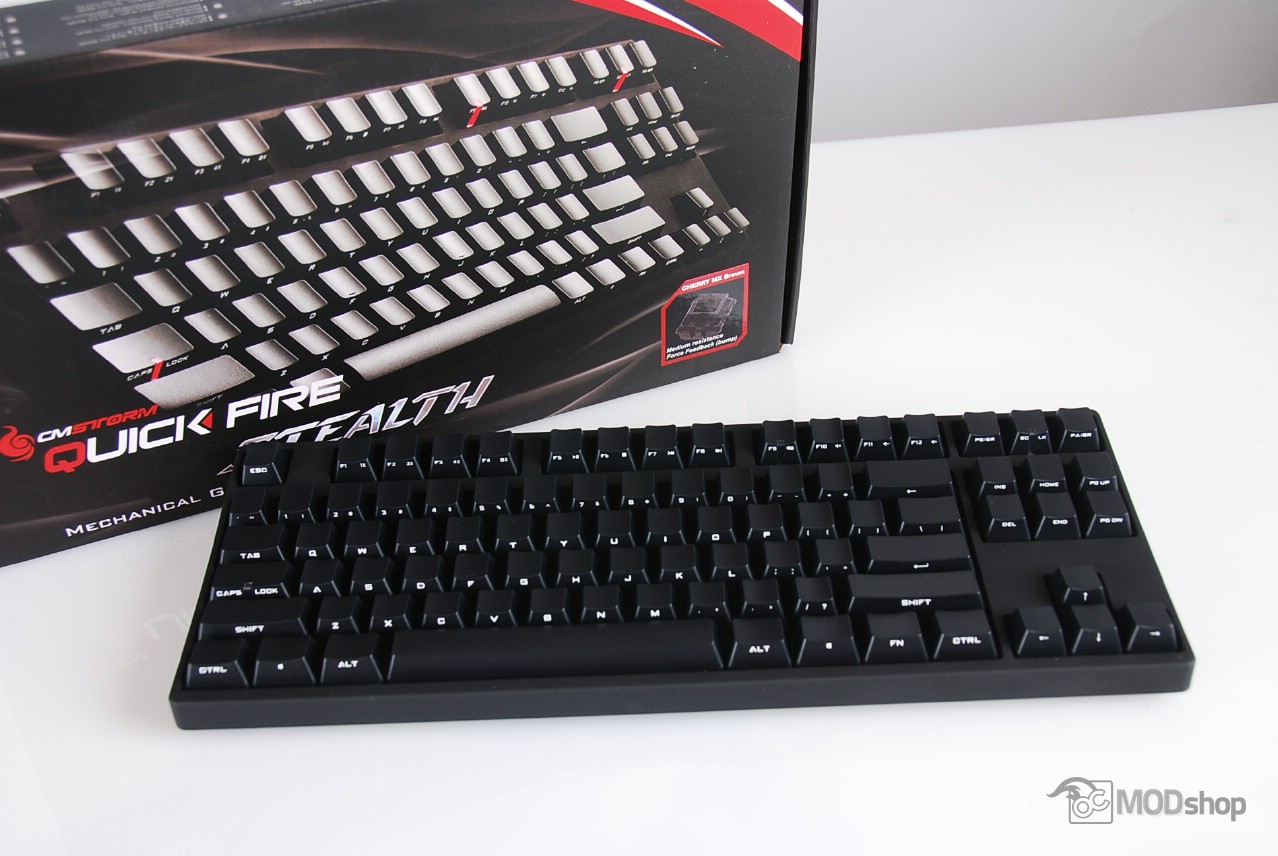
The Cooler Master QuickFire Stealth compact mechanical keyboard is made for those who don’t have a lot of desktop space. Because it lacks a 10-key keypad, the keyboard has a much smaller footprint than most other keyboards, which makes it a perfect fit inside a laptop bag or LAN-party accessory bag.
The model we’re testing has Cherry Brown switches. These switches provide the tactile feel of Blue switches without the loud “click”, making them a good compromise for a gamer and typist. I really do like the feel of the brown as they give some feecback. I really don’t like the fact that there’s no wrist rest and a minimal layout. All of the function keys are hidden under an Fn key, which replaces the context (right-click) key on Windows keyboards.
Inside the box is a small manual, braided six-foot gold-plated USB 2.0 cable, a USB to PS/2 keyboard adapter, six replacement keycaps and a keycap extraction tool.
- Weight: 2.1 lbs.
- 2 Year warranty
- Rubber-coated keyboard body
- Phantom keycaps – fronts printed on the keycap sides
- Ingegrated steel plate for maximum durability
- Command rate speed adjustments via key-combo (PS/2)
- Windows key can be disabled via key combo
- Multimedia shortcut keys (toggled via Fn key)
- Removable braided USB cable with cable routing grooves
A Closer Look
All of the keys on the Quick Fire Stealth keyboard appear to be blank, as in some of the Das Keyboards you can buy. Each function is printed on the bottom side of the keyboard, which are visible by looking down. Since this keyboard is so compact, the scroll lock and caps lock functions have moved from the traditional section of lights to LEDs on their respective keys. There is no 10-key numpad on this compact keyboard, therefore there is no “numlock” indicator light.


The keyboard does come with additional keycaps. There are four red keycaps to replace the W, A, S, and D keys (the keys used most often in PC games). Cooler Master has also provided two replacement keys for the Windows key, which have the Cooler Master logo.


The back of the keyboard has the “CM Storm” logo. The bottom of the keyboard has a single mini USB 2.0 port for the braided gold-plated USB cable that comes with the box. There are routing channels for the cable that allow the cable to exit left, right or the center back of the keyboard.

When compared to other mechanical gaming keyboards, there are a few things missing other than its size. The Cooler Master QuickFire Stealth does not have any key backlighting, nor does it have a wrist rest.

Additional functions of the keyboard are provided through a function toggle. The alternate key (or right-click key) has been replaced with a Fn key. The traditional function keys (F1 through F12) perform these commands when the Fn key is held down:
| CM Fn Key Toggles | |
| F1: 1x rate adjustment (PS/2 mode) | F7: Media Previous |
| F2: 2x rate adjustment (PS/2 mode) | F8: Media Next |
| F3: 3x rate adjustment (PS/2 mode) | F9: Windows lock |
| F4: 4x rate adjustment (PS/2 mode) | F10: Mute |
| F5: Media play/pause | F11: Volume Up |
| F6: Media stop | F12: Volume Down |
One thing that confuses me with the keyboard layout is the Scroll lock key. This key is hardly ever used by anyone, ever. Cooler Master could have replaced this with something useful or gotten rid of it altogether.

The Caps lock, Scroll Lock, and F9 keys have a transparent piece cut through them that lets a red LED shine through. The red LED under the F9 key is illuminated when the Windows lock is enabled (Fn + F9). So technically there are three backlit keys on this keyboard. Since the